Proximity voice: voice chat in Minecraft on any server
Walk up to a player and just talk. No Discord, no server plugins and nothing to set up: hold V and the players next to you hear you. The closer someone is, the louder they sound, and you can tell which side they’re talking from. It works on any server where other NLauncher players are.
Proximity voice is already on — the launcher and the mod update by themselves. Don’t have the launcher yet? nlauncher.net/en/download.
- Any serverNothing to install on the server — no plugins, no mods.
- Hear where they are3D sound: a voice on your left comes from the left.
- The farther, the quieterFull volume up to 6 blocks, silence past 48.
- Hold VOr use voice activation, or just listen.
- Volume for everyoneMute, report, or hear only your friends.
- No eavesdroppingOnly players next to you in the game can hear you.
Walk up and talk
Join a server, walk up to a player and talk with your voice, like in real life. No need to drag friends into Discord, look for a server with a voice plugin or set anything up: hold V and the players standing next to you hear you.
The voice doesn’t go through the game server — it goes through NLauncher’s servers. So the server owner doesn’t have to install anything: proximity voice works on big servers, on your friends’ server and in a world you opened to friends.
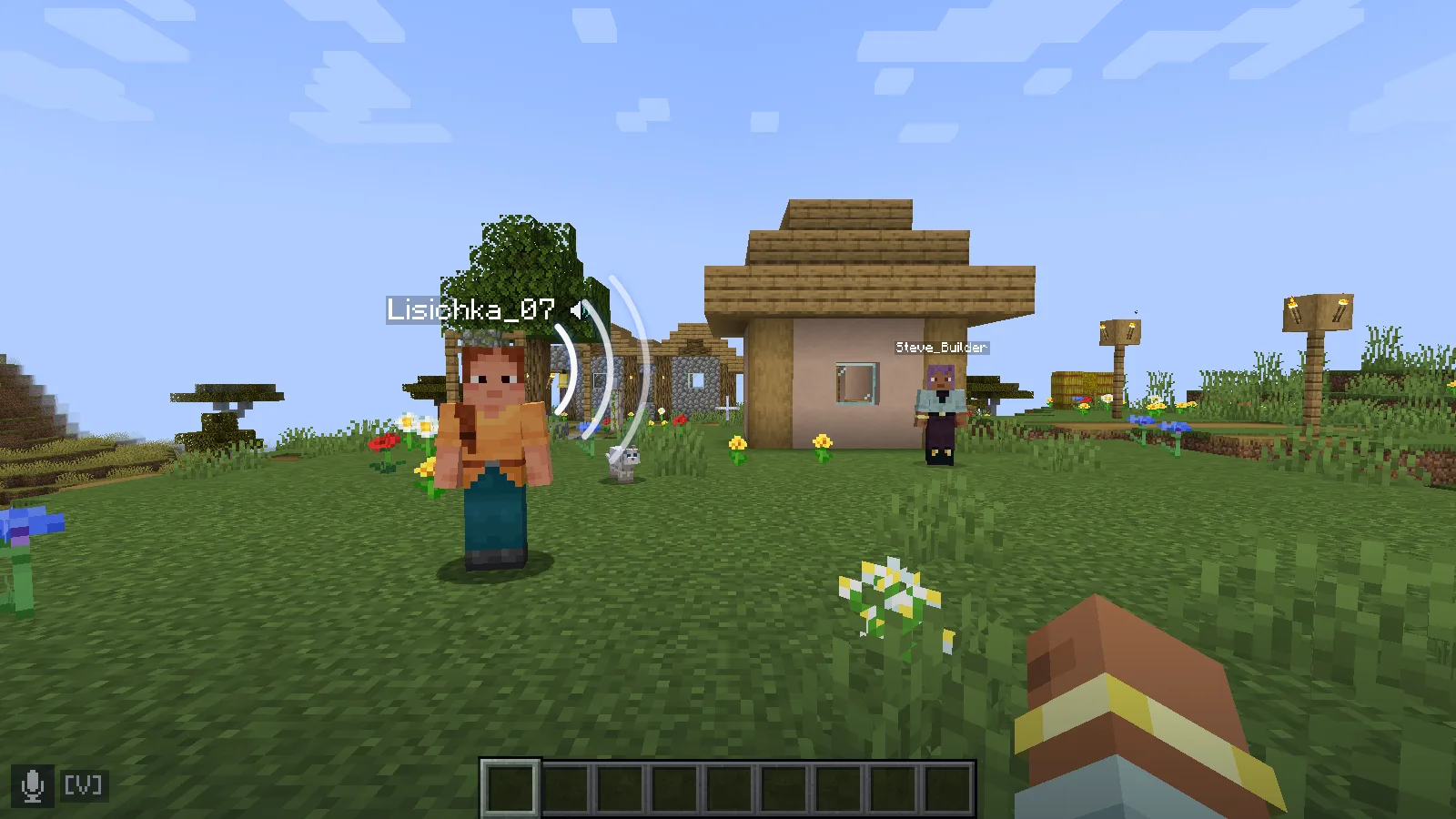
No rooms and no channels: you talk to whoever is next to you in the game. Walk away and the voice fades; come back and you hear it again.
Sound like real life
Voices are in 3D: a player on your left is heard on the left, a player behind you — from behind. Turn your head and the sound turns with you. It’s best with headphones.
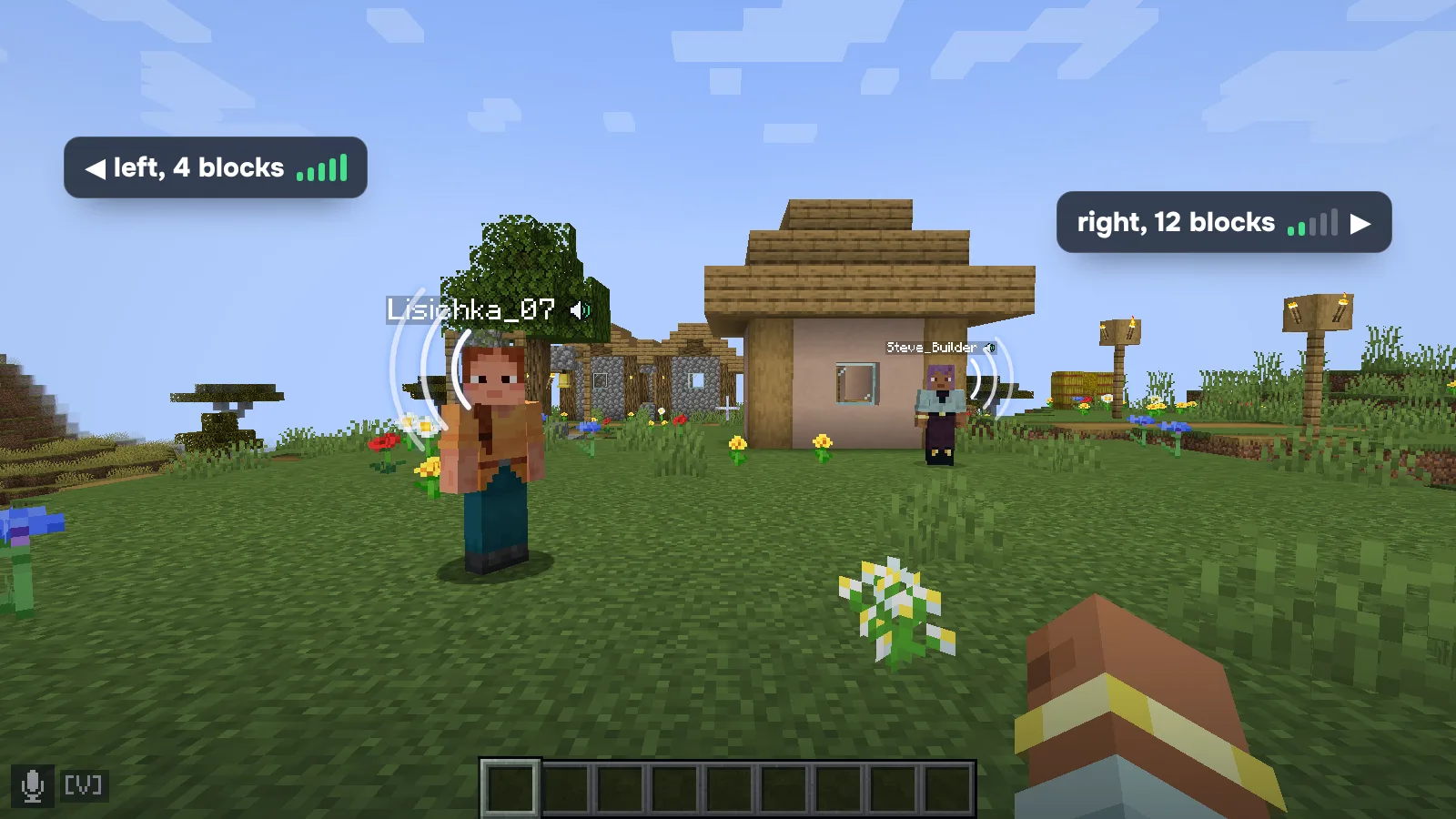
Volume depends on distance: full volume up to 6 blocks, then quieter and quieter, and past 48 blocks you hear nothing.
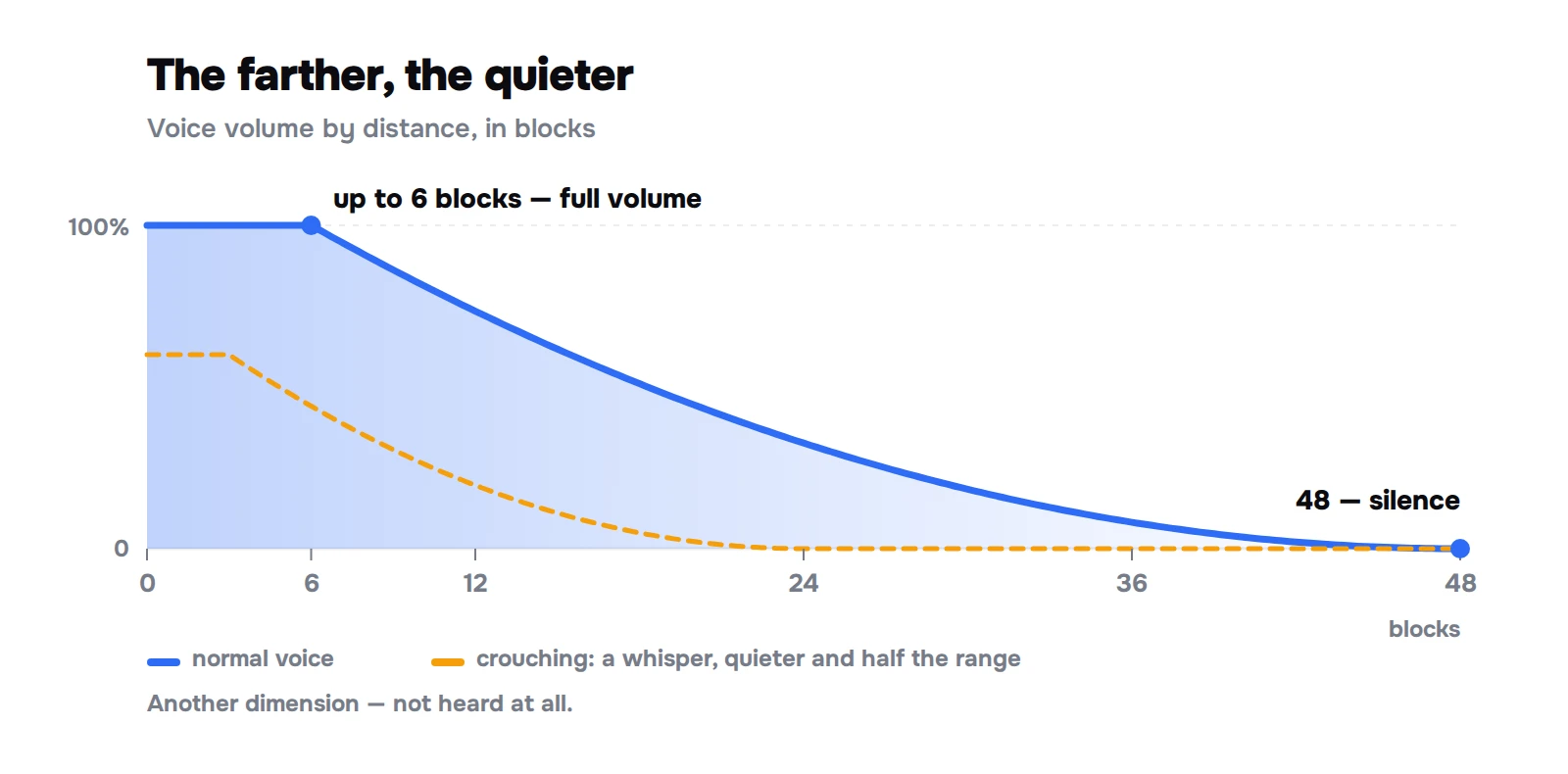
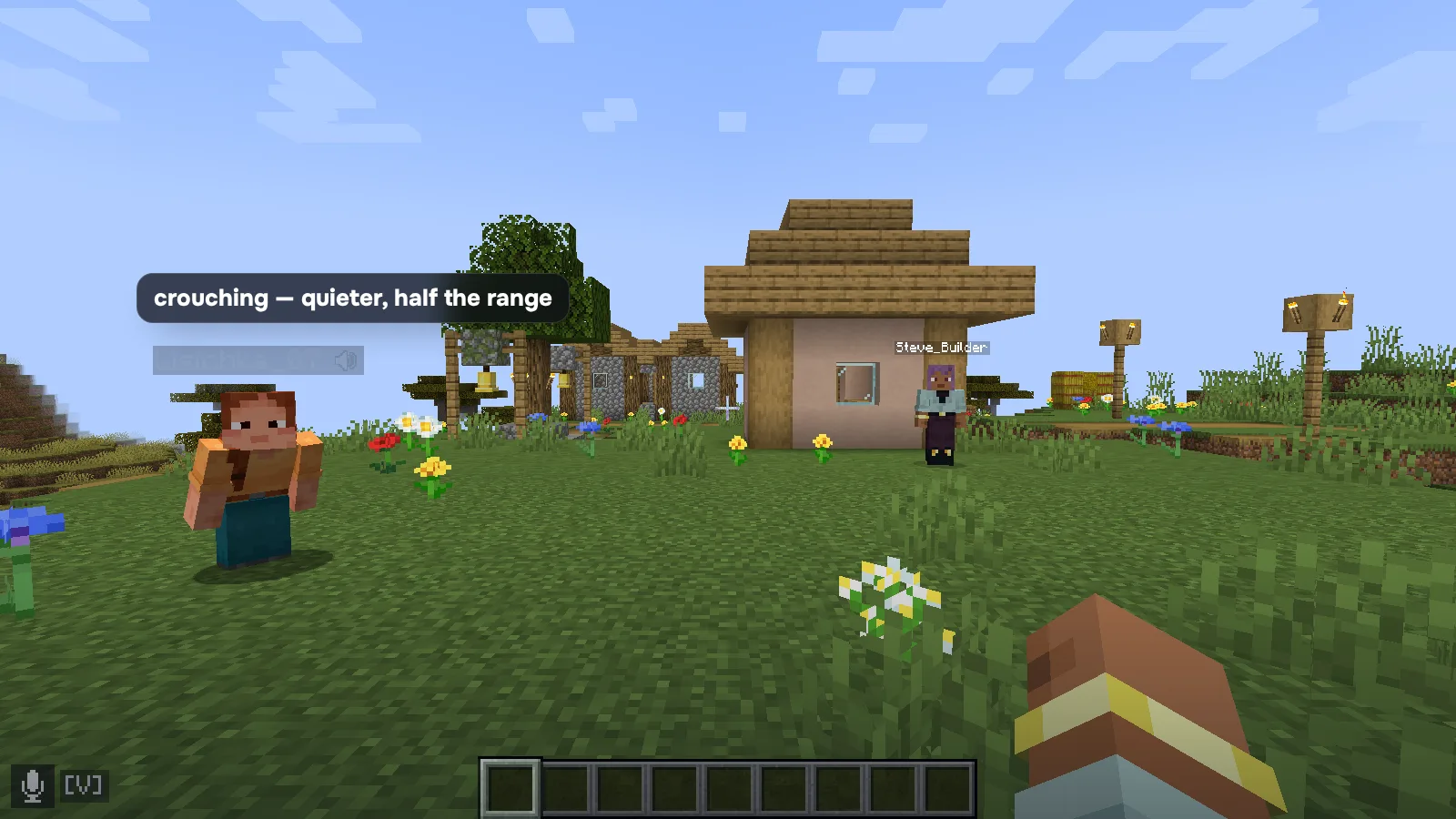
- Crouch (Shift) to whisper: you’re quieter and heard only half as far. Handy when you don’t want everyone around to hear.
- Muffled under water, like every other sound in Minecraft.
- Another dimension — silence: you can’t shout from the Nether to the Overworld.
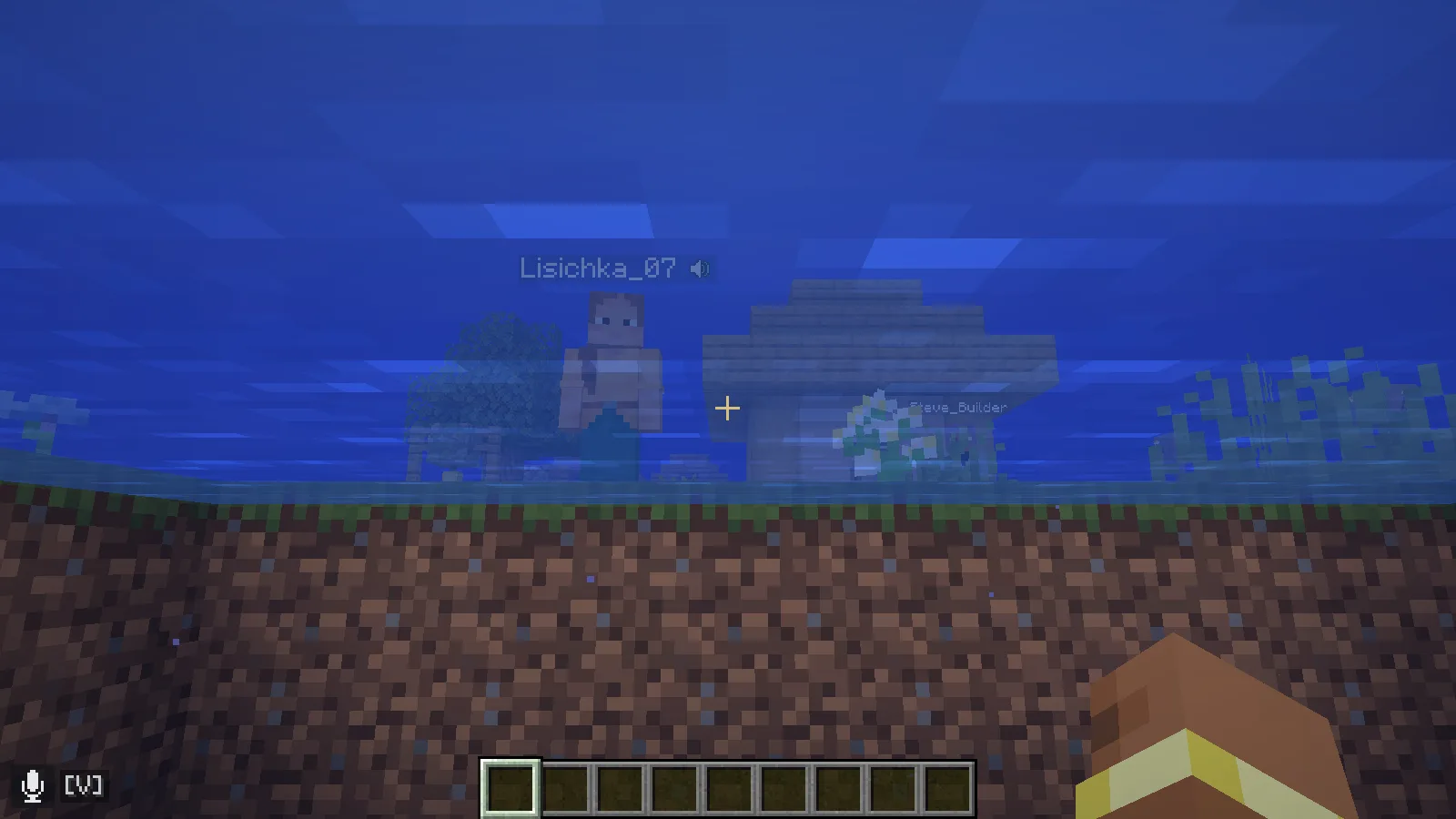
Hold V to talk
By default the mic is push-to-talk: hold V and you’re heard, let go and the mic is silent and sends nothing. You can change the key in Minecraft’s controls.
There are two more modes: voice activation — the mic turns on by itself when you speak, and listen only — you hear everyone, but nobody hears you.
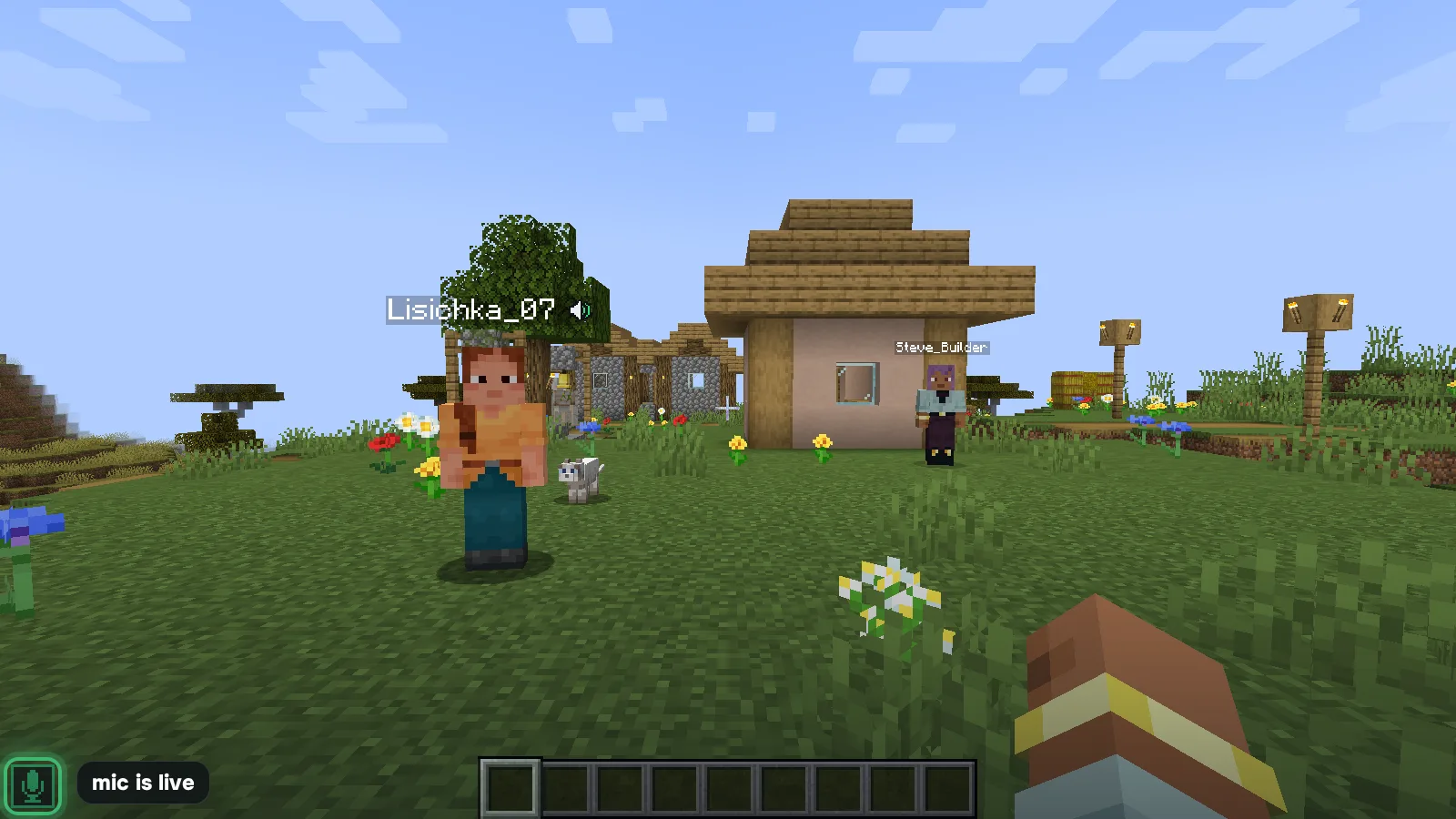
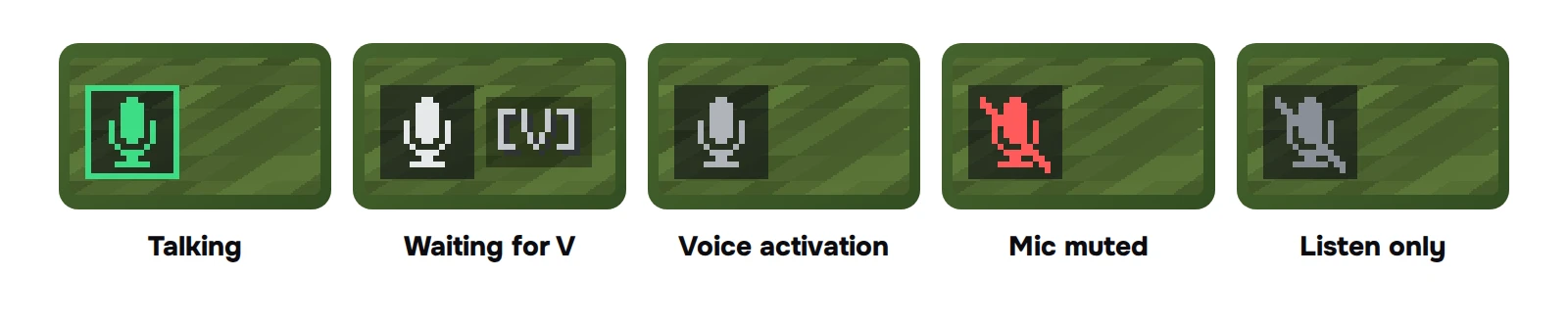
The icon in the bottom left corner always shows what your mic is doing:
Whoever is talking has a speaker with waves above their head, so you always see who’s speaking. If the icons bother you, turn them off in the settings. Noise suppression is the same as in NLauncher calls, with your mic settings.
You choose who you hear
- Volume for each player — from silence to 200%.
- Mute — the player goes silent for you only.
- Everyone or friends only — you can hear only your NLauncher friends.
- Report — the report goes to moderators and the player is muted for you right away.
All of this is in the in-game overlay (Alt+`) and in the launcher (Settings → Sound → Proximity voice).
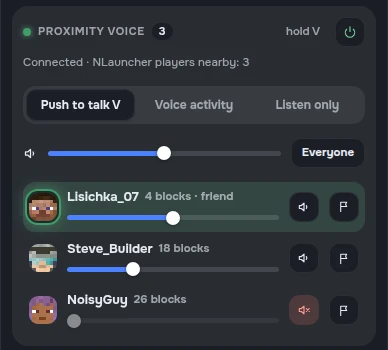
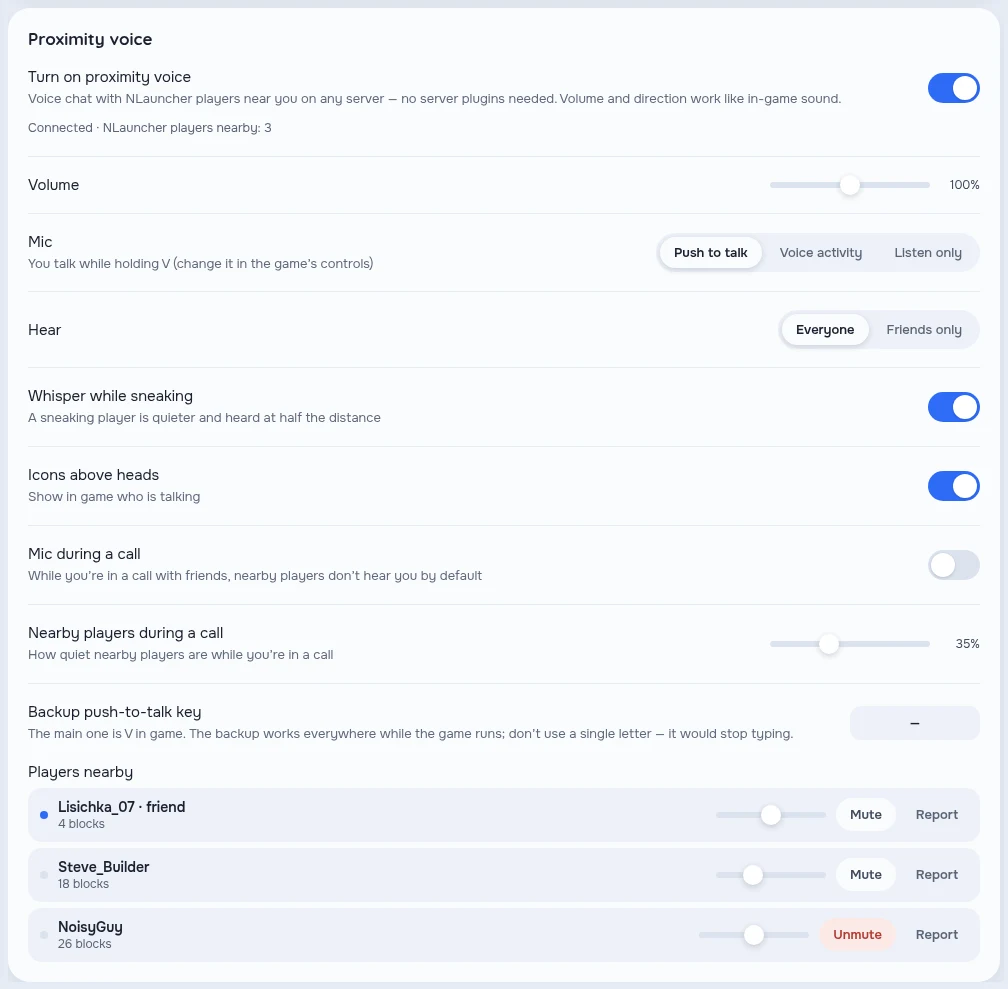
If you’re in a call with friends, players nearby are quieter (35%), and your proximity mic is off by default, so the call and random people around don’t get in each other’s way. Both can be changed in the settings.
No eavesdropping
Only players the game really sees next to you can hear you. Even if someone fakes their client and tries to join the server’s voice from far away, they won’t get your voice until their character is next to yours.
Your name in voice is the same as in the game, so nobody can pretend to be another player. The address of the server you play on isn’t stored in voice rooms: each room has a coded name.
Where it works
You need NLauncher 0.4.91 and the NLauncher mod 0.9.6 — both update by themselves. It works with an NLauncher account and with a premium Minecraft account. Game versions:
- 1.16.5 — Forge;
- 1.20.1 — Fabric and Forge;
- 1.21.1 — Fabric and NeoForge;
- 26.1–26.3.
More versions are coming soon.
NLauncher players hear each other. Invite your friends — all they need is to download the launcher.
If the server already runs Simple Voice Chat, proximity voice steps aside so there aren’t two voice chats in the game at once.
How to turn it on
There’s nothing to do — proximity voice is on from the start. Open the launcher: it updates itself to 0.4.91, and the mod updates to 0.9.6 the next time you start the game. Join a server, walk up to a friend and hold V. The first time you play, the launcher shows you how to talk.
To turn it off or set it up: Settings → Sound → Proximity voice.
Windows 10 and 11 (64-bit) · macOS 12 and newer on Apple Silicon and Intel · Linux 64-bit: AppImage and .deb